
Choosing your process settings
Welphi has four process settings that change how your questionnaire works. Choose them before you start round 1.
Where to find the settings
- Process page – click the process name on the home page. All four settings are here.
- "Process Settings" window – opens when you create a process with the "CREATE NEW PROCESS +" button. The first three settings can also be set here.

1. Include answers from uncompleted questionnaires
From round 2 onwards, Welphi shows participants the results of the previous round. On Qualitative pages, participants can see them as percentages or absolute numbers ("Show stats as: PERCENTAGE / ABSOLUTE").
The setting "Include answers from uncompleted questionnaires across rounds" decides whose answers count:
- Checked: Welphi uses every answer, even from participants who did not complete the questionnaire. Each question may then be based on a different number of participants.
- Unchecked: Welphi only uses answers from participants who completed the questionnaire. Every question is then based on the same participants.
Example: if 100 participants answered one question and 90 answered the next, 50% means 50 people in the first and 45 in the second. With the box unchecked, 50% always means the same number of people.
The "Round results" page of a qualitative page reminds you which option is in use and links back to this setting.
Who moves on to the next round
This setting also decides who is carried over when you click "NEW ROUND +":
- Checked: all participants move to the new round.
- Unchecked: only participants who completed the previous round move to the new round. Use this if your protocol only invites round 1 respondents to round 2.
Decide before you create round 2
- Choose this setting during round 1.
- Once you have created the next round, you can no longer change it for that process.
- Already created the next round with everyone? Export the participants status of both rounds ("ROUND STATUS AND INVITATIONS" > "EXPORT") and compare them to find who did not complete. Contact us before sending the new invitations if you need help.
2. Require participants to log in
The setting "Participants are required to log in to access the process" decides how participants open the questionnaire:
- Checked: the personal link opens a welcome page. Participants click "OK" (or "Sign in with Google") and create a password the first time. The password needs at least 8 characters, with a lowercase letter, an uppercase letter, a number and a special character.
- Unchecked: the personal link opens the questionnaire directly.
Without login, anyone who gets a participant's link can answer on their behalf.
What this setting does not change
Whether or not participants log in:
- each participant has their own personal link, and their answers in every round are linked to them (and to the same Alias);
- from round 2 onwards, participants see the previous round's results;
- you view answers ("View page analysis"), export round data ("EXPORT") and compare groups of participants in the same way.
Which option to choose
- Keep login if you collect sensitive information, if links might be forwarded, or if your ethics approval asks for password-protected access.
- Turn login off to make answering as easy as possible. Send each link only to its owner and ask participants not to forward it.
See Inviting participants to a round and Opening a questionnaire with a personal link.
3. Enable universal link access
Check "Enable universal link access to allow participants to access the study by clicking on a single, universal link" to get one link that anyone can use to register. Use it to:
- share your questionnaire on social networks or mailing lists;
- ask participants to invite other experts (snowballing);
- reach experts whose e-mail addresses you don't have, for example through a professional society.
With the universal link, participants enter their e-mail address and click "NEXT". New participants then enter their name and a password and accept the terms. After that, they are treated like any other participant.
Testing the universal link
If you are logged in to Welphi as the process administrator in the same browser, Welphi blocks the universal link. To test it:
- Log out of your Welphi account.
- Close any other tabs or windows where Welphi is open.
- Open the link, or use a private (incognito) window or another browser.
4. Reveal the real identities of participants
By default, Welphi shows each participant's answers under a randomly generated Alias, in the back office and in your downloads. There is no file linking each Alias to a name.
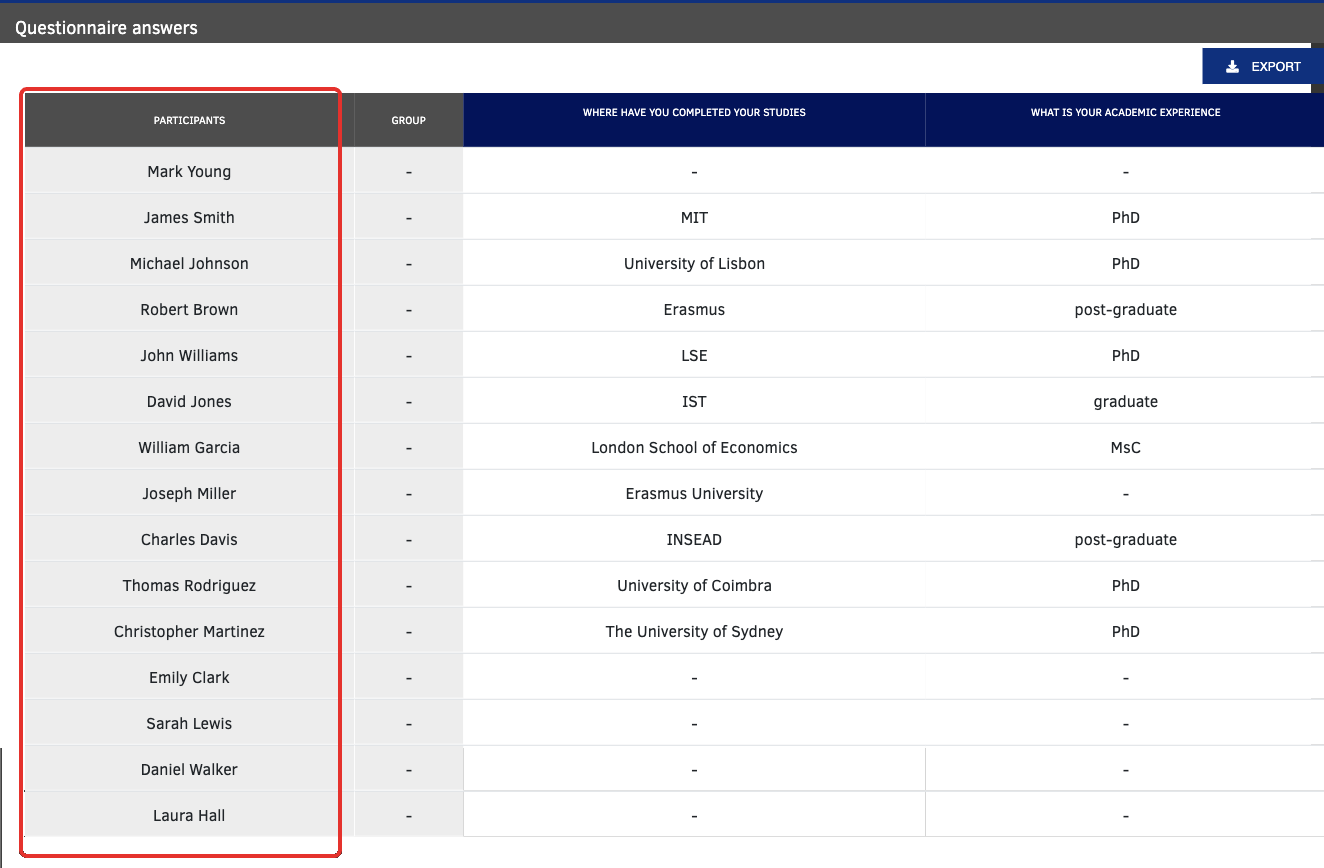
To see names instead, check "Reveal the real identities of participants when viewing questionnaire responses". Names are only shown to you as process admin, never to other participants. Only the name is shown, not the e-mail address.

This setting cannot be undone. Once names are revealed, you cannot hide them again.
Before you reveal identities
Check what participants were told. If your ethics approval, consent form or information sheet says answers are anonymous to the research team, you may not be allowed to reveal identities. Update your consent wording or ask your ethics committee first.
Matching responses with data collected outside Welphi
If you collected details such as demographics outside Welphi (for example, in a registration form):
- Confirm that your consent and ethics approval allow you to link answers to named participants.
- Check "Reveal the real identities of participants when viewing questionnaire responses".
- Open a page's answers ("View page analysis" on the Round details screen) or export the round data. The "PARTICIPANTS" column now shows names.
- Match each participant with your records using the name they were invited with (the download shows names, not e-mail addresses).
Collecting participant details inside Welphi
To avoid matching data by hand:
- add a Survey page to ask demographic or background questions – see Choosing page types for a round;
- add custom fields (for example, country or area of expertise) when you add participants – see Adding and managing participants.