
Opening a questionnaire with a personal link
This article explains what happens when you click a personal link to access a Welphi questionnaire, the first time and every time after that.
Overview
When you click a personal link, Welphi checks whether you already have a password.
- Check the process – the process name is shown in the lower-left corner of the page, so you can make sure you are in the right place.
- Your credentials – your e-mail address and a password let you return to the questionnaire whenever you want. You also use them for the next rounds of this process and for any other Welphi process.
Note: if the process does not require participants to log in, you skip these steps (see Processes without a login below).
First access: create your password
1. Acknowledge the message
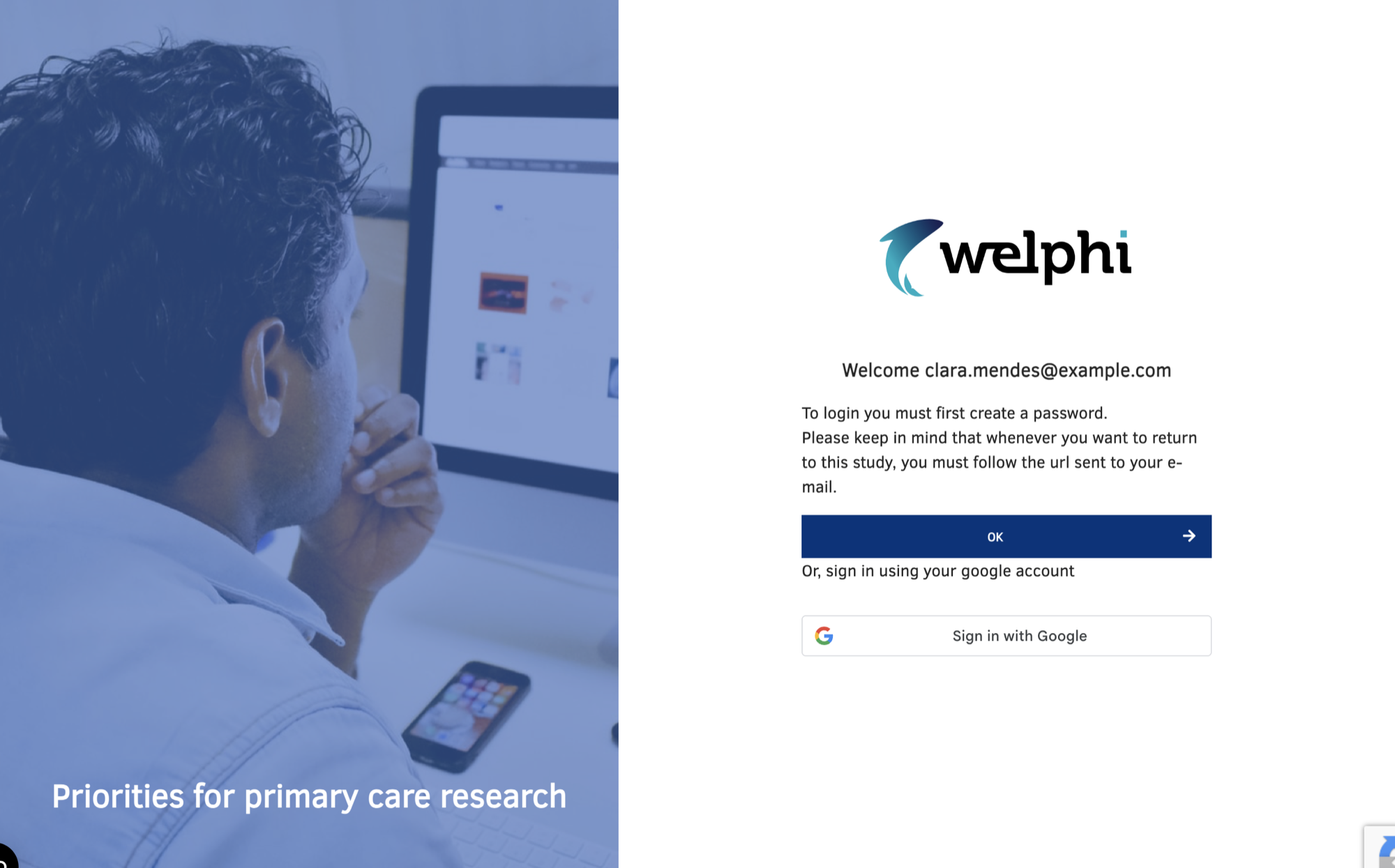
The first page greets you with your e-mail address and explains that you need to create a password. Click "OK" to continue.
You can also click "Sign in with Google" to use your Google account instead of a password.
2. Create your password
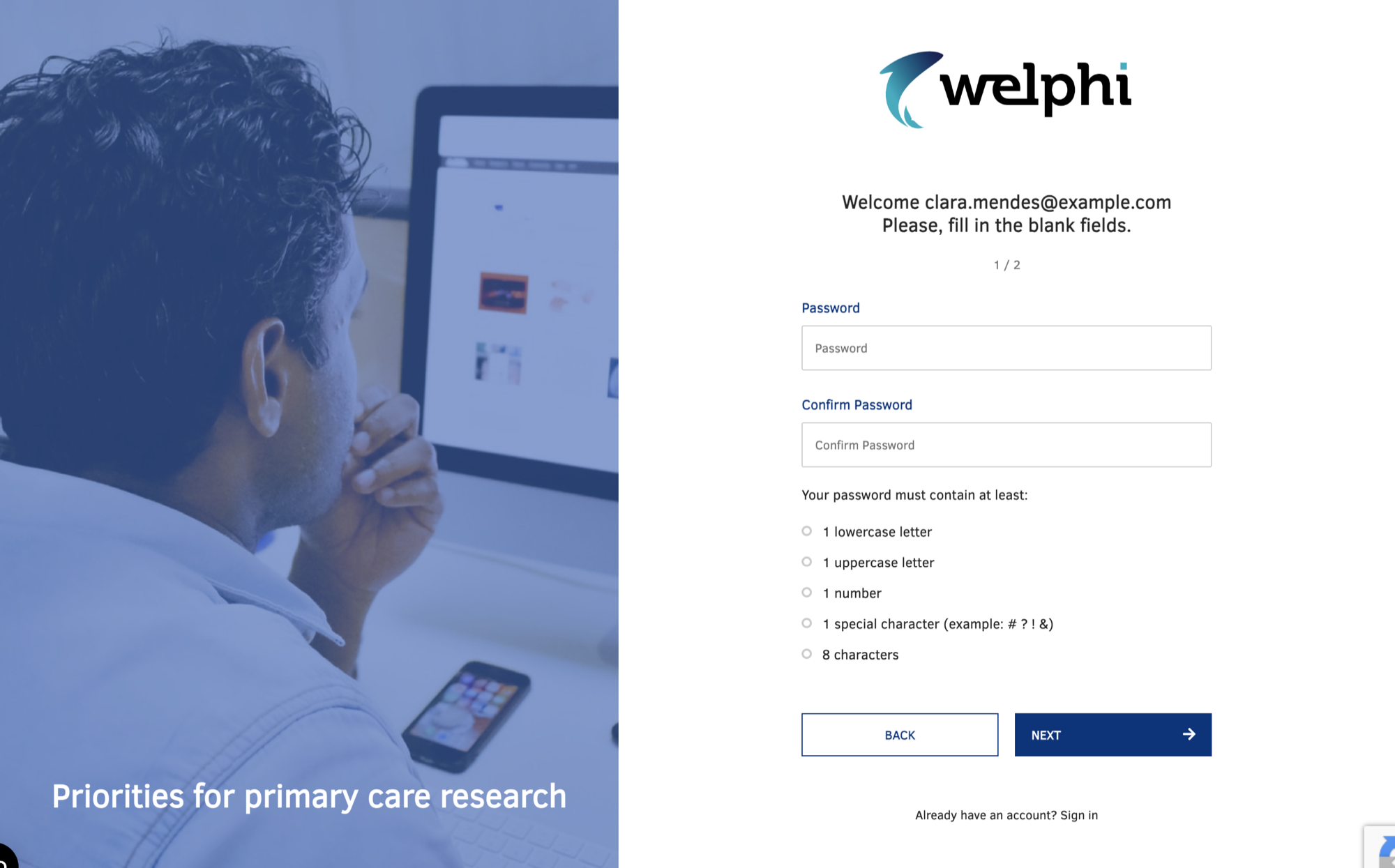
- Type your new password in "Password" and again in "Confirm Password".
- Click "NEXT".
Your password must contain at least:
- 1 lowercase letter;
- 1 uppercase letter;
- 1 number;
- 1 special character (for example # ? ! &);
- 8 characters.
3. Accept the terms and conditions
- Accept the "Terms and conditions" by checking the box.
- Click "Next". You move straight to the questionnaire.

Returning to a questionnaire
From now on, whenever you follow a link to a questionnaire, your e-mail address is already filled in.
- Type your password.
- Click the "Sign in" button. You go straight to the questionnaire.
Processes without a login
The study team can decide that participants don't need a password ("Participants are required to login to access the process", see Choosing your process settings). In that case, your personal link opens the questionnaire directly, with no password.
Please keep in mind that anyone with your link can then open your questionnaire, so don't share it.
Cookie banner
When you first open Welphi, a cookie banner asks for your consent.
- "Allow all" – allows all cookies.
- "Customize" – lets you choose which types of cookies you want to allow.