
Opening a questionnaire with a universal link
This article shows you how to open a Welphi questionnaire with a universal link: how to register the first time and how to log in when you come back.
Overview
- Open the access page and type your e-mail address.
- The first time, add your name and create a password.
- Accept the terms and conditions.
The access page
When you click a universal link, you are taken to the questionnaire's access page. The process name is shown in the lower-left corner, so you can make sure it is the right questionnaire.
- Type your e-mail address in "E-mail". If you have answered a Welphi questionnaire before, use the same e-mail address.
- Click "NEXT".
You can also click "Sign in with Google" to use your Google account instead of a password.
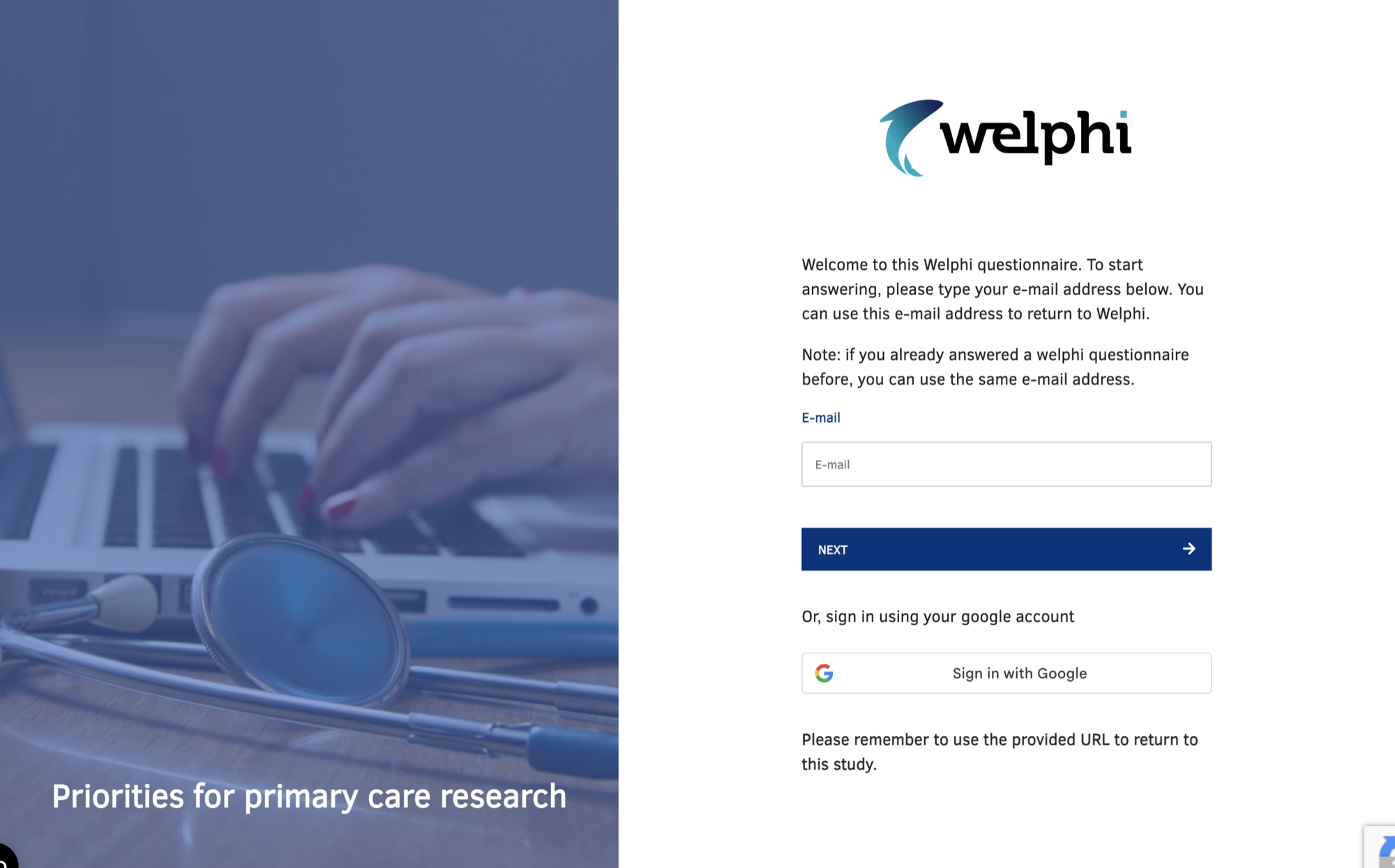
Your e-mail address and password let you return to the questionnaire whenever you want. You also use them for the next rounds of this process and for any other Welphi process.
First time: register
Step 1 – Name and password
If your e-mail address is new to Welphi, the next page asks you to fill in:
- Name;
- Password and Confirm Password.
Your password must contain at least 1 lowercase letter, 1 uppercase letter, 1 number, 1 special character (for example # ? ! &) and 8 characters.
Click "NEXT" to continue.
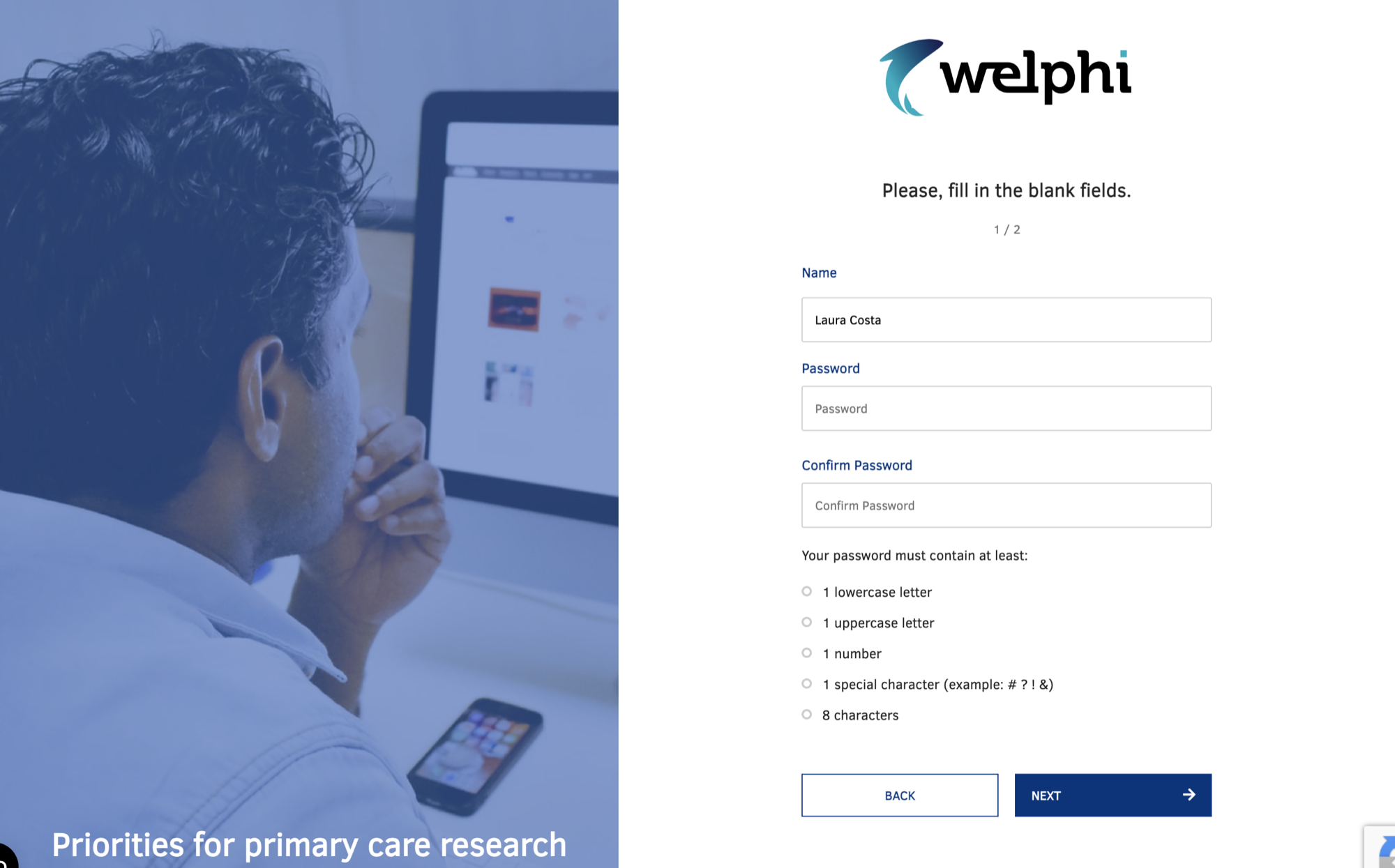
Step 2 – Terms and conditions
- Accept the "Terms and conditions" by checking the box.
- Click "Next". You move straight to the questionnaire.

Coming back later
- Follow the universal link again.
- Type your e-mail address and click "NEXT".
- Type your password and sign in.
If you are on the name and password page by mistake, click "Already have an account? Sign in" to go back to the access page.
Cookies
When you first open Welphi, a cookie banner asks for your consent:
- "Allow all" – allows all cookies.
- "Customize" – lets you choose which types of cookies you want to allow.